CADFIGURES · PRACTICAL DRAWING GUIDES
How to use tree CAD blocks in elevations.
Choose the right view, check the real model size and keep the building legible.
A tree in an architectural elevation describes more than planting. Its trunk can frame an entrance, its crown can soften a street edge and its height helps the viewer read the scale of a building. A useful tree CAD block needs a clear silhouette, suitable proportions and predictable units.
Start with an elevation, not a plan symbol
An elevation is a side view of the tree. A plan symbol is a top view of its canopy. They describe different drawing planes. The cadfigures tree library contains elevations for sections, facades and landscape presentations; placing one in a site plan will not turn it into a top-view tree.
Choose a narrow crown beside a facade when you need the windows to remain visible. A broad crown can help define a garden edge or shaded space. For a winter scene, leafless tree previews show the branch structure; leafy tree previews show a more continuous planted silhouette.
Read the dimensions of the actual drawing
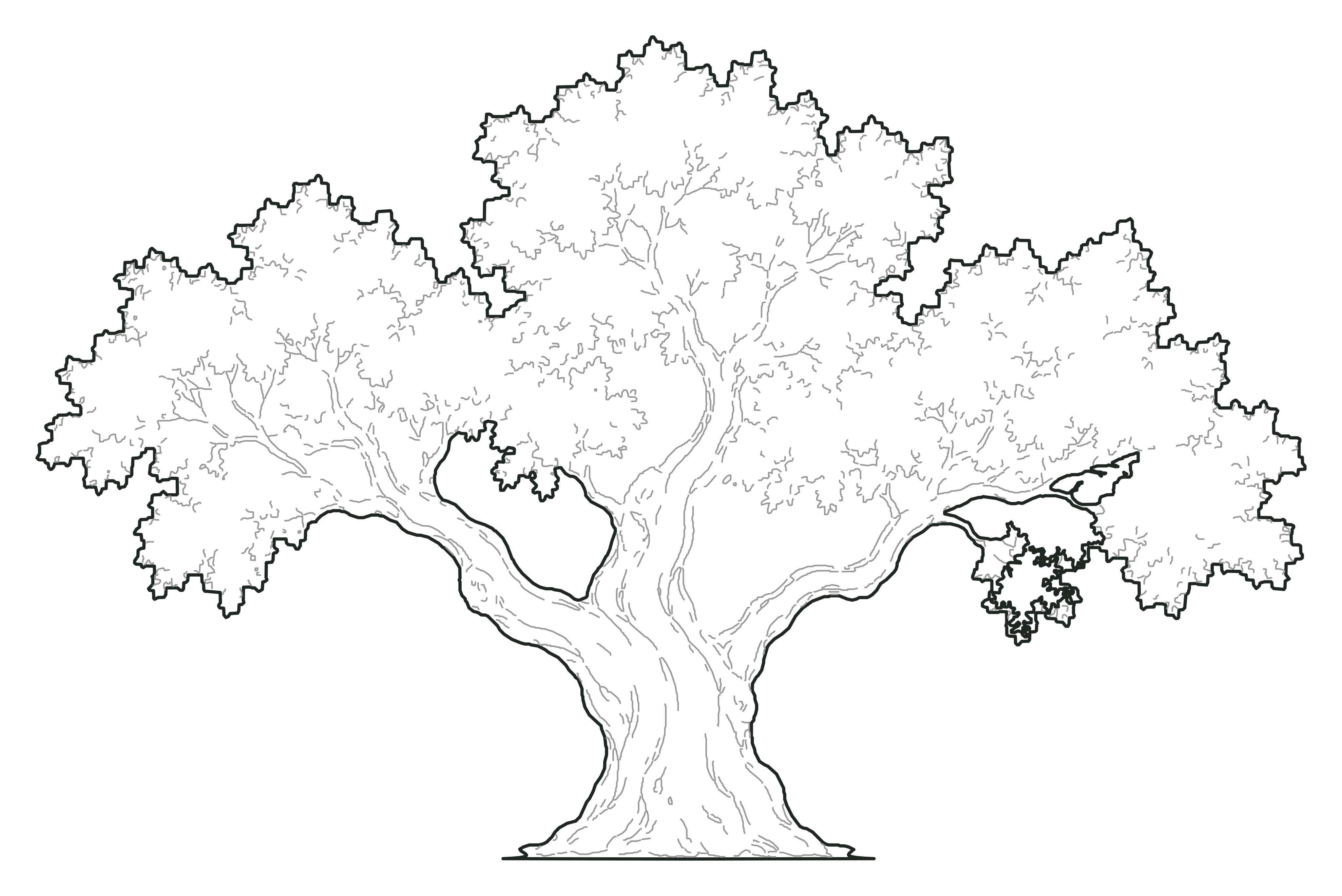 Inspect the free olive tree drawing ↗
An example from the library
This olive tree elevation is drawn 6 m high and approximately 9.25 m wide. Those are the dimensions of this specimen drawing, not the maximum size or growth standard of the species.
The native model uses metres and the insertion point is at the foot of the trunk. Keep that point on the intended ground line.
Check metres and millimetres before scaling
Draw at real model size. For this 6 m tree, the correct height is 6 units in a metre model or 6000 units in a millimetre model. Measure the imported geometry before changing it: the import process may already have converted the units.
| Model units | Drawing height | Approximate crown width |
|---|---|---|
| Metres | 6 | 9.25 |
| Centimetres | 600 | 925 |
| Millimetres | 6000 | 9254 |
If a 6 m tree measures only 6 in a millimetre drawing, and no other conversion has occurred, multiplying by 1000 restores its intended height. If it already measures 6000, do not apply that factor again. Use the known dimension as the reference instead of judging by the size on screen.
Keep model scale separate from paper scale
At 1:100, a 6 m tree prints 60 mm high. At 1:200 it prints 30 mm high. The model tree remains full size; the viewport or print setup controls the paper scale. Scaling the model down to its printed height will make later measurements and dimensions unreliable.
Our model units and scale guide explains the same distinction with a measured people drawing. The principle is the same for tree blocks.
Use linework to support the architecture
Start with one or two tree types that suit the scene. Place their trunk feet on the ground line and check the crown against roof lines, windows and entrances. Avoid enlarging a tree simply to fill an empty corner; use a specimen whose proportions fit the intended space.
The drawings use a readable outer contour and lighter internal detail. White fills can separate overlapping figures in a presentation. Check draw order and your application's handling of fills or masks when a crown overlaps a facade, so the intended foreground and background remain clear.
Choose the file for your workflow
- DWG: native CAD files for software with DWG support.
- DXF: a CAD exchange format for applications that support DXF import.
- SVG: editable vector paths for illustration and presentation software with SVG support.
- PNG: a raster image for layouts where editable linework is not required.
All four formats are available for the 24 free tree drawings without an account. The file choice does not replace a units check. For people downloads, DWG and SVG are the free formats; the tree and people libraries have different download options.
Find a tree for the scene
Browse the preview, compare its recorded height and crown width, and download one specimen before building a larger planting scene. The Complete Tree Collection previews 120 additional drawings; premium sales are opening soon.